

Bulk API
Overview
ZoomInfo Bulk API is a REST-based API designed to search, match, and enrich large volumes of contact and company records asynchronously. It simplifies large-scale data processing by reducing the need to manage multiple API requests, pagination, and separate search and enrichment operations.
Unlike standard ZoomInfo Search and Enrichment APIs, which process smaller datasets synchronously, Bulk API enables developers to submit a job and let ZoomInfo handle the processing in the background.
For example, standard Contact and Company Search APIs support up to 10,000 matching records, returning a maximum of 100 records per page. Retrieving and enriching all 10,000 records would require up to 100 search requests followed by multiple enrichment requests, each supporting up to 25 records. With Bulk API, developers can combine search, matching, and enrichment into a single asynchronous Query job, retrieving up to 100,000 records without orchestrating separate Search and Enrichment API calls.
Bulk API also supports enriching existing contact and company datasets using ZoomInfo IDs or other supported matching attributes. Once processing is complete, results are available as downloadable files for use in CRM systems, data warehouses, custom applications, and customer-built agentic solutions.
Supported Operations with Bulk API
| Operation | jobName | Description |
|---|---|---|
| Contact Search | contact-search | Search ZoomInfo's contact database using specified criteria to identify matching contact profiles at scale. |
| Company Search | company-search | Search ZoomInfo's company database using specified criteria to identify matching company profiles at scale. |
| Contact Enrichment | contact-enrichment | Enrich existing contact records with available ZoomInfo professional and contact intelligence. |
| Company Enrichment | company-enrichment | Enrich existing company records with available ZoomInfo firmographic and company intelligence. |
Bulk Job Execution:
Bulk API follows an asynchronous, job-based execution model. Clients submit a job, receive a unique job ID, and monitor its progress until processing reaches a terminal state. Results and record-level errors are then available through downloadable files.
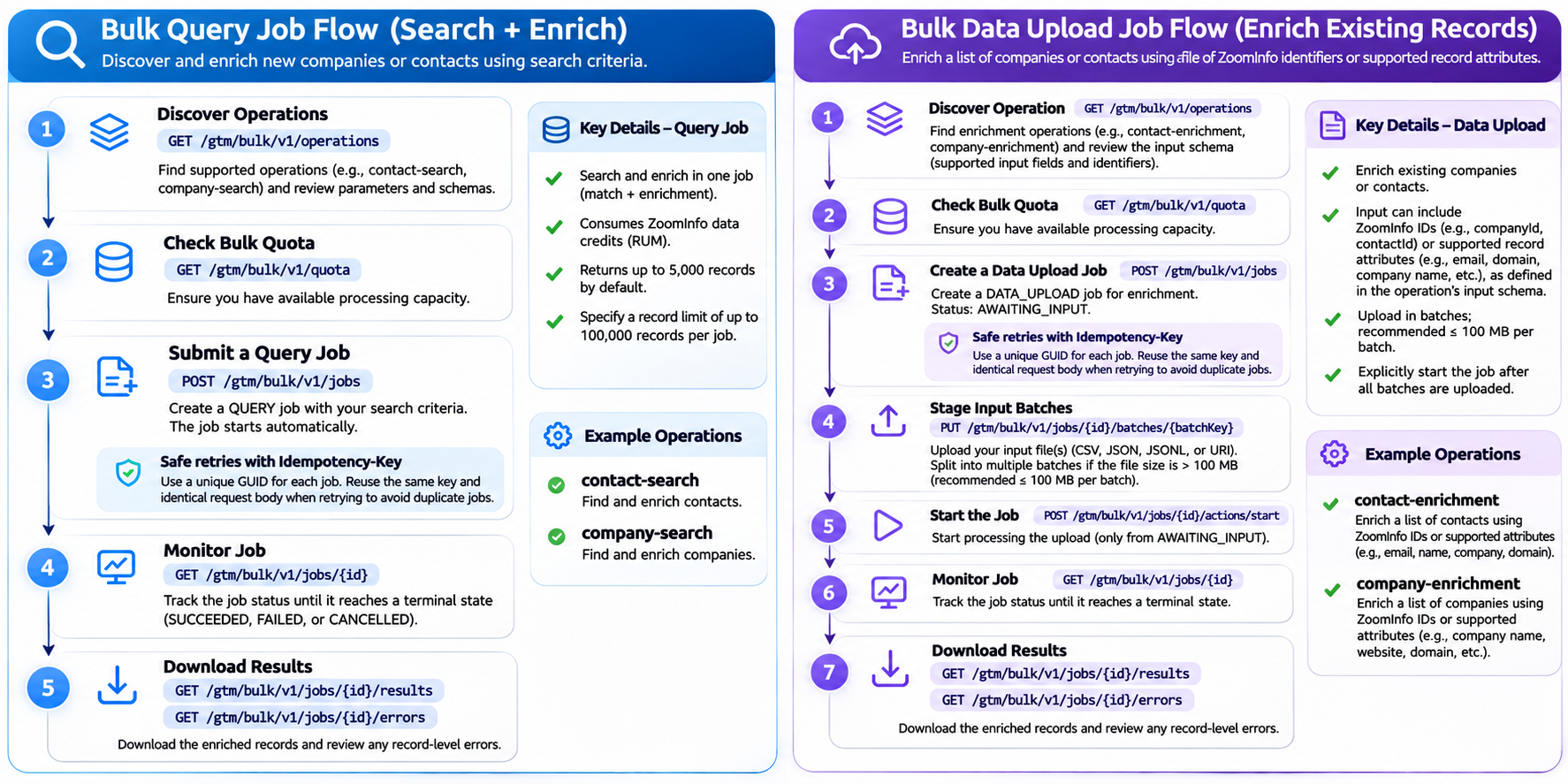
A. Query Job Flow
Use a Query job to search for contacts or companies matching specified criteria and retrieve enriched results.
-
Discover operation (optional): Retrieve the supported search parameters and output schema.
-
Check quota (optional): Verify available bulk processing capacity.
-
Submit job: Create a QUERY job with the desired search criteria.
-
Automatic execution: ZoomInfo validates the request and queues the job for asynchronous processing.
-
Monitor status: Poll the job until it reaches a terminal state.
-
Retrieve results: Once the job completes successfully, download the results. If any records fail, use the Get Bulk Job Errors endpoint to review the errors.
Important:
- By default, a Bulk Query job returns up to 5,000 records when no record limit is specified. Developers can explicitly request up to 100,000 records per job.
- Query jobs start automatically after submission. No input batch upload or explicit start request is required.
B. Data Upload Job Flow
Use a Data Upload job to enrich an existing dataset of contact or company records. Input records can contain ZoomInfo IDs or multiple matching attributes supported by the selected Contact or Company Enrichment operation.
-
Discover operation (optional): Review the accepted enrichment input schema.
-
Check quota (optional): Verify available bulk processing capacity.
-
Prepare input data before using this job: Create CSV, JSON, or JSONL files using the supported matching attributes for company/contact enrichment.
-
Submit job: Create a DATA_UPLOAD job.
-
Stage input batches: Upload one or more batches containing contact or company records while the job is in AWAITING_INPUT. If the input file exceeds 100 MB, split it into multiple batches, with a recommended maximum of 100 MB per batch, before starting the job.
-
Verify or modify batches (optional): Review or remove uploaded batches before execution.
-
Start job: Explicitly initiate processing after all required batches are uploaded.
-
Monitor status: Poll the job until it reaches a terminal state.
-
Retrieve results: Once the job completes successfully, download the enriched records. If any records fail, use the Get Bulk Job Errors endpoint to review the errors.
Important: Data Upload jobs do not start automatically. Upload your input file as a single batch, or split it into multiple batches if the file exceeds 100 MB. Once the input is staged, explicitly start the job using the Start a Bulk Job endpoint.
Bulk API Limits and Quotas
-
Rate Limits: Bulk API endpoints are subject to the same rate limits as ZoomInfo Data APIs.
-
Data Upload Size Limits
For DATA_UPLOAD jobs, the recommended upload size is 100 MB per page or 10k records per request. -
Bulk Processing Quota:
Bulk API usage is subject to tenant-level limits on the number of jobs submitted and records processed within a rolling 24-hour window. These limits vary based on the customer's ZoomInfo subscription.NoTo view the applicable quota and current usage, including available records, processed records, reserved records, and jobs submitted within the last 24 hours, use the Get Bulk Quota endpoint. We recommend checking the available quota before submitting bulk jobs to ensure sufficient processing capacity.
Credit Consumption
Both Bulk Query and Bulk Data Upload jobs consume applicable ZoomInfo data credits and follow the RUM (Record Under Management) model, subject to the customer's subscription entitlements.
- Bulk Query Jobs: Search and enrichment are performed together. Credit consumption follows the RUM model.
- Bulk Data Upload Jobs: Contact and Company Enrichment operations consume credits following the RUM model.
Note: Credit consumption and bulk processing quotas are separate. RUM governs metered data usage, while processing quotas determine the volume of bulk operations a tenant can execute.
API Access and Permissions
Accessing the Bulk API requires including the appropriate Bulk API scopes when creating an OAuth app through Custom Apps. Partners and customers with existing OAuth apps will need to update their apps to include these scopes.
Note:
Having Bulk API scopes alone does not grant access to Contact Search, Contact Enrichment, Company Search, or Company Enrichment operations. The corresponding Contact and Company API scopes must also be included in the OAuth app configuration.
Errors and Status Code
Request errors
These errors are returned when a request is rejected. Each one includes a code and a description. The Status Codes and Errors reference lists the same codes.
| HTTP | Code | Error Description | What to do |
|---|---|---|---|
| 400 | VALIDATION_ERROR | The request body failed validation. | Fix the fields named in the response and resubmit. |
| 400 | INVALID_REQUEST_BODY | The body is malformed or can't be parsed. | Check the JSON and the declared content type. |
| 400 | INVALID_ENUM_VALUE | A value isn't one of the allowed options. The response lists the valid values. | Use one of the listed values. |
| 400 | INVALID_PARAMETER | A path or query parameter has the wrong type or format. | Correct the parameter. |
| 400 | INVALID_INPUT | The job's input is invalid. | Correct the input and submit a new job. |
| 400 | INVALID_CURSOR | The pagination cursor is invalid. | Restart listing from the first page. |
| 400 | ESTIMATE_REJECTED | The job's criteria were rejected before the job was accepted. | Adjust the criteria. |
| 404 | JOB_NOT_FOUND | No job exists with this ID. | Check the job ID. |
| 404 | UNKNOWN_OPERATION_TYPE | The operation type isn't supported. | Use a supported operation. |
| 404 | QUOTA_HOLD_NOT_FOUND | The quota hold doesn't exist. | Check the hold ID. |
| 409 | IDEMPOTENCY_KEY_REUSE | The Idempotency-Key was already used with a different request body. | Use a new key, or resend the identical body with the original key. |
| 409 | JOB_ALREADY_TERMINAL | The job has already finished, so the action can't be applied. | No action needed. |
| 409 | JOB_NOT_AWAITING_INPUT | Batches can only be staged, or the job started, while it is AWAITING_INPUT. | Check the job's status first. |
| 409 | ILLEGAL_STATUS_TRANSITION | The requested state change isn't allowed from the job's current state. | Check the job's status first. |
| 409 | BATCH_CONFLICT | The batch conflicts with what is already staged for the job. | Use a new batch key, or resend identical content. |
| 409 | RESULTS_NOT_READY | Results were requested before the job reached a terminal state. | Poll Get a Bulk Job until it is terminal. |
| 409 | ERRORS_NOT_READY | Errors were requested before the job reached a terminal state. | Poll Get a Bulk Job until it is terminal. |
| 409 | BQM-0002 | The quota hold was already released. | No action needed. |
| 413 | BATCH_TOO_LARGE | The batch exceeds the maximum upload size of 100 MB. | Split the upload into smaller batches. |
| 422 | INPUT_NOT_READY | The job's input isn't ready to be processed. | Wait for staging to finish, then retry. |
| 422 | BATCH_FORMAT_MISMATCH | The batch content type doesn't match the input format declared when the job was created. | Send the declared format. |
| 422 | BQM-0001 | Not enough daily record quota remains for this job. | Check GET /gtm/bulk/v1/quota, wait for the 24-hour reset, or submit a smaller job. |
| 500 | INTERNAL_SERVER_ERROR | An unexpected error occurred on ZoomInfo's side. | Retry with the same Idempotency-Key and body. If it persists, contact support with the request time. |
| 502 | PROVIDER_UNAVAILABLE | A dependent service is temporarily unavailable. | Retry after a short delay. |
| 503 | ENTITLEMENT_UNAVAILABLE | ZoomInfo could not verify your bulk entitlement. | Retry after a short delay. |
Job errors
A job that ends FAILED has a message in its error field. The message names the cause; internal details are not shown.
| Error Message | Root Cause | What to do |
|---|---|---|
| Could not create record quota hold for N records with only M available records remaining | There isn't enough daily record quota for the job's estimated size. The job fails before any records are processed. | Check GET /gtm/bulk/v1/quota, wait for the 24-hour reset, or submit a smaller job. |
| A message describing the problem with the input file | The uploaded file couldn't be parsed. | Fix the file and submit a new job. |
| Every record failed. | All records failed, and none succeeded. | Check the errors endpoint for the cause, correct the records, and submit a new job. |
| The job failed. Contact support if the problem persists. | An internal failure occurred. The cause is not shown. | Retry the job once. If it fails again, contact support with the job ID. |
Record errors
A record that fails does not stop the job. A job with failed records can still finish, with the status
PARTIAL_SUCCESS. Each failed record is listed in the errors file from GET /gtm/bulk/v1/jobs/{id}/errors, with its match status and the record as submitted.
Failed records have one of these match statuses:
- INVALID_INPUT: the record failed validation. Correct the value and submit the record in a new job.
- NO_RESPONSE: no response was returned for the record. Submit it again in a new job.
- OPT_OUT: the contact has opted out of ZoomInfo's data collection. Contact enrichment only.
- LIMIT_EXCEEDED: the account's usage limit was exceeded. Contact and company enrichment.
- NO_MATCH is not an error. It appears in the results, not the errors file.
Each record the job processes counts toward your daily record limit, including records that fail, such as INVALID_INPUT, NO_RESPONSE, and OPT_OUT records.
Updated about 24 hours ago